
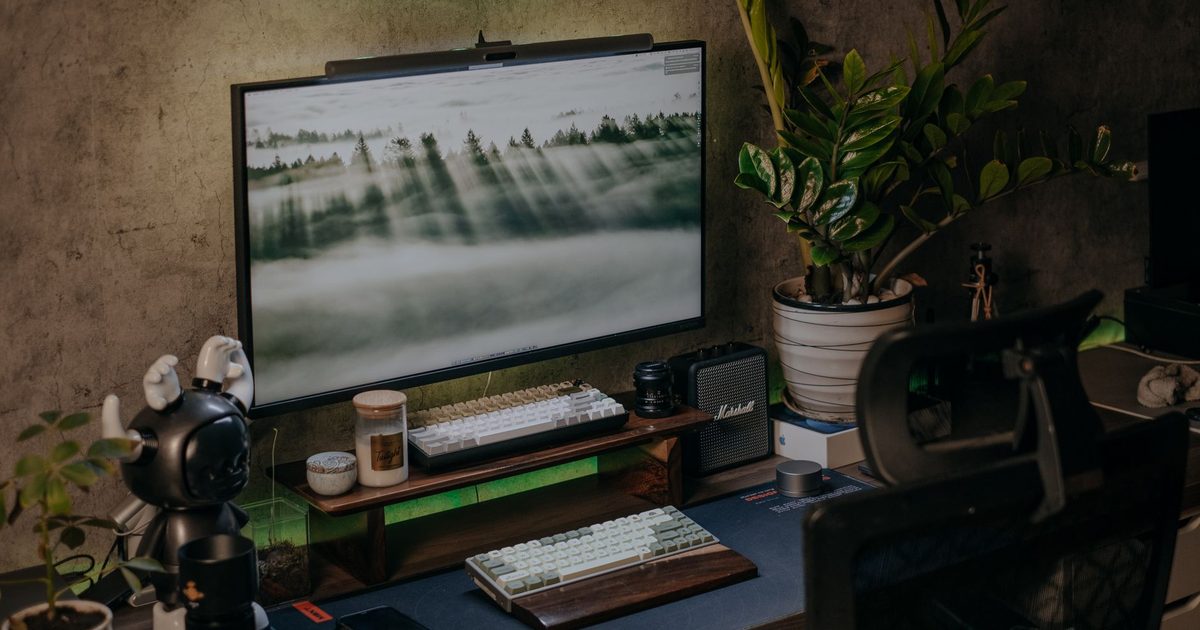
Put an ordinary lamp on a desk in front of a screen and a good share of its light comes straight back off the glass at you. A monitor light bar answers that by sitting on the top edge of the screen and throwing its light forward, onto the desk rather than the display. What separates a good one from a bright plastic strip is not lumens. It is how faithfully the light shows colour, whether the white can be moved from warm to cool, and whether the bar sets its own brightness or waits for you to do it. This guide leads with those three, and with which of them each maker actually puts a figure to, because that is where this category gets slippery.
The three bars, and what each one publishes
1. BenQ ScreenBar Monitor Light Bar (Auto-Dimming, Glare-Free, 2700K-6500K) - Best Overall
HSP Score: 9.4 / 10 - Auto-dimming and glare-free, with a published 2700K-6500K colour-temperature range and Ra95. The sensible default.
Capability 9.4/10 - Versatility 9.4/10 - Build 8.9/10 - Value 8.9/10 - Fit 9.8/10
Fit for this guide: The one pick that puts a figure to all three: Ra95, a 2700K to 6500K range, and a built-in light sensor.
Every pick here is scored out of 10: four marks rate the product and are the same in every guide, and the fifth rates its fit for this guide - how we test and score.
The ScreenBar is the only pick here that answers all three of this guide's questions with a figure, which is why it leads. BenQ publishes eight colour-temperature settings running from 2700K to 6500K, so one bar covers a cool white for the morning and a warmer one for the end of the day. Colour rendering is quoted at Ra95 or higher. A light sensor sets the brightness to the room rather than leaving that to you, and the asymmetric lens BenQ markets as Glare-Free is the thing that aims the light down at the desk instead of back at the screen. It runs off a USB port rather than a mains plug, and the bar itself is 45cm long. One honest note: those figures come from BenQ's own specification, because the retail listing, as with every bar here, commits to little beyond the model name.
Pros
- ✓ A warm-to-cool range across eight settings on a bar that dims itself, the range and the sensor this guide leads with
- ✓ Ra95 colour rendering and a glare-free optical design, both BenQ's own published figures
Cons
- ✗ Its colour and light figures come from BenQ's specification rather than the retail listing, which names little beyond the model
- ✗ At 45cm it is the shortest bar of the three, so a very wide or ultrawide screen is better matched by the premium's reach
Who it's for: Anyone on a single screen who wants the full set of figures without paying for the premium's extra reach and sensor.
Who it's not for: A very wide or ultrawide monitor, where the extra length and brightness of the premium earn their keep.
2. Quntis 52cm Computer Monitor Lamp Bar (Auto-Dimming, 100 LED, Ra95) - Best Budget
HSP Score: 8.7 / 10 - 52cm auto-dimming lamp bar with 100 LEDs. The spend-less route.
Capability 8.5/10 - Versatility 8.9/10 - Build 8.0/10 - Value 8.9/10 - Fit 8.9/10
Fit for this guide: Auto-dimming across 100 LEDs at 52cm and Ra95 suits a reader who wants the light handled without a colour-temperature range.
The Quntis is the spend-less pick and clears two of the three things this guide leads with. Its listing title says Auto Dimming, so it sets its own brightness, and rates colour rendering at Ra95. The same title gives a 52cm bar with 100 LEDs and calls it ultrawide, which matters more than it sounds: at 52cm it is the longest bar here, so it is the one most likely to span a wide screen. Where it falls short of the two BenQ bars is colour temperature, which it does not publish at all: no range, no single value, nothing. So you get the automation and the colour accuracy at the lowest price, and you find out what shade of white it casts only when it arrives.
Pros
- ✓ Auto Dimming, stated in its listing title, so brightness is not one more thing to set by hand
- ✓ 52cm and 100 LEDs, the longest bar of the three and the best match for a wide screen
Cons
- ✗ No colour temperature published anywhere we could check, so whether its white moves at all is unknown until it arrives
- ✗ Nothing published about the housing or the clip either, which is what holds the build score below the two BenQ bars
Who it's for: Anyone who wants the light to look after itself and does not need to choose the shade of white it casts.
Who it's not for: Anyone who cares what colour of light they work under: that figure belongs to the two BenQ bars.
3. BenQ ScreenBar Pro (Motion Sensor, Ultrawide, 2700K-6500K) - Best Premium
HSP Score: 9.0 / 10 - Adds a motion sensor, ultrawide reach and brighter output over the ScreenBar. The buy-once pick.
Capability 9.8/10 - Versatility 9.4/10 - Build 8.9/10 - Value 8.5/10 - Fit 8.5/10
Fit for this guide: It steps up on a motion sensor, ultrawide coverage and 1000-lux brightness a single-screen desk rarely needs, earning its place on capability.
The ScreenBar Pro is the overall pick with more of everything, and whether that is worth the step up depends on your desk. It carries over the overall pick's colour range and its Ra95 rendering, and adds a second colour measure, Rf96, for how faithfully it holds saturated colour. The headline additions are physical: an ultrasonic motion sensor that switches the bar off a few minutes after you leave and back on when you return, a brighter output BenQ rates above 1000 lux, sixteen brightness steps rather than a plain dimmer, and an ultrawide spread that covers 85cm of desk at the working brightness against the ScreenBar's narrower pool. BenQ lists it as a 50cm bar powered over USB-C. None of that makes the light on a single screen any truer than the ScreenBar's; it makes it reach further, turn itself off and on, and run brighter, which is a real gain over a wide or dual-screen desk and quiet overkill over one ordinary monitor.
Pros
- ✓ An ultrasonic motion sensor and ultrawide 85cm reach, with over 1000 lux and sixteen brightness steps
- ✓ The overall pick's colour range and Ra95, plus an Rf96 figure for saturated colour
Cons
- ✗ Most single-monitor desks will not use the ultrawide reach or the motion sensor, so a lot of the step up goes unused
- ✗ It is the dearest of the three for a light on your own desk no truer than the overall pick's
Who it's for: Anyone with a wide, ultrawide or dual-screen desk who wants the longer reach and the hands-off sensor.
Who it's not for: A single ordinary monitor, where the overall pick gives the same colour at less money.
Quick verdict
The bar we would put on our own desk is the BenQ ScreenBar Monitor Light Bar (Auto-Dimming, Glare-Free, 2700K-6500K): alone here it answers all three questions this guide leads with, moving its white warm to cool, holding colour accurate and dimming itself to the room. To spend less, the Quntis 52cm Computer Monitor Lamp Bar (Auto-Dimming, 100 LED, Ra95) is the longest bar here and keeps the automation and the colour accuracy, leaving only its white unstated. And for a wide or dual-screen desk, the BenQ ScreenBar Pro (Motion Sensor, Ultrawide, 2700K-6500K) adds the motion sensor, the brighter output and the longer reach.
The three things that matter more than lumens
- Colour rendering (Ra or CRI). Two names for one measure: how faithfully a light shows colour against daylight, scored up to 100. Our own bar for desk work is 90 or above, because under that, skin tones and printed colour start to look a little off even in a room that feels bright enough. All three bars here quote Ra95 or higher, so this is the floor they all clear rather than the thing that separates them. The BenQ Pro adds a second figure, Rf96, for how well it holds saturated colour.
- Colour temperature. One fixed white suits nobody all day: cooler light suits the morning, warmer light suits the hours when you have had enough of it. A maker that quotes a real span, as both BenQ bars do with 2700K to 6500K, is telling you the bar moves between the two. The budget Quntis quotes nothing here, which is its one real gap: a bar that leaves colour temperature blank is telling you to find out what its white looks like for yourself once it arrives.
- Auto-dimming, or your own hand. An auto-dimming bar changes its brightness as the room changes; the alternative is that you do. All three bars here dim themselves, so this is no longer where they split. The premium goes one further with a motion sensor that also switches the bar off when you leave the desk and on when you come back, which is convenience rather than better light.
One thing no spec sheet spells out: these bars work because of the shape of the lens, which pushes light down and forward onto the desk while cutting what spills back towards the screen. That is the mechanism behind a phrase like BenQ's Glare-Free, and it is why a light bar and a desk lamp are not the same purchase. If you are lifting the screen off its stand as well, our monitor arm guide covers the numbers that decide fit there.
How we chose
None of these three has been on our desk, so the label is spec-checked rather than hands-on, and we would rather write that than imply otherwise. The method is deliberately narrow: verify the live listing for each pick, take the figures the maker actually stands behind, whether that is the retail listing or the maker's own specification, leave the blanks blank, and score all three against the same criteria we use on every guide. That is why this page keeps naming what is missing: the budget bar leaves out the colour temperature the guide treats as important, and smoothing over that with adjectives would make the picks look more alike than they are. Nobody paid for a place here. Prices and star ratings are left off deliberately: they move, and the live listing will always be more current than this page.
FAQ
Q: Does a monitor light bar actually reduce glare on the screen? A: That is what the shape is for. The light is aimed down at the desk instead of out at the screen, so much less of it bounces off the glass back at you. It is an angle fix rather than a medical one, and it will do nothing about a bright window sitting behind your monitor. Glare is one half of a comfortable view; the screen's height is the other. If a reflection is still landing on the glass, our guide to stopping screen glare walks through finding the source and fixing it in order.
Q: What do Ra and CRI mean, and why does the number matter? A: They are two names for the same measure: how accurately a light shows colour compared with daylight, scored up to 100. We look for 90 or above for desk work, since below that, colours under the light can look washed out even in a room that feels perfectly bright. Every bar in this guide sits above that mark.
Q: Do I actually need auto-dimming or the motion sensor? A: The auto-dimming is genuinely handy, and since every bar here has it, it is not a tie-breaker between them. The motion sensor on the premium is the smaller extra, switching the bar off when you leave and on when you return. Neither makes the light better or the colour truer, so weigh both as convenience rather than a reason to pay more.
Q: Will a light bar fit my monitor? A: They sit on the top edge of the screen, so fit comes down to your monitor's top edge and, on a curved screen, how far the curve pulls the ends of a straight bar away from the panel. All three here publish their own length, 45cm, 50cm and 52cm, so you can hold that against the width of your screen, but none publishes a bezel or curvature figure we could verify, so the bar's own listing is where to check before ordering.
Q: Can I use a light bar with a monitor arm? A: Yes, and little changes: the bar sits on the monitor rather than on the desk, so it travels with the screen whenever you move the arm. Get the arm's fit right first, since it is the thing carrying both.
Affiliate disclosure: This page contains affiliate links. As an Amazon Associate we earn from qualifying purchases, at no extra cost to you. See our disclosure page for details.