
The rule, and where it comes from
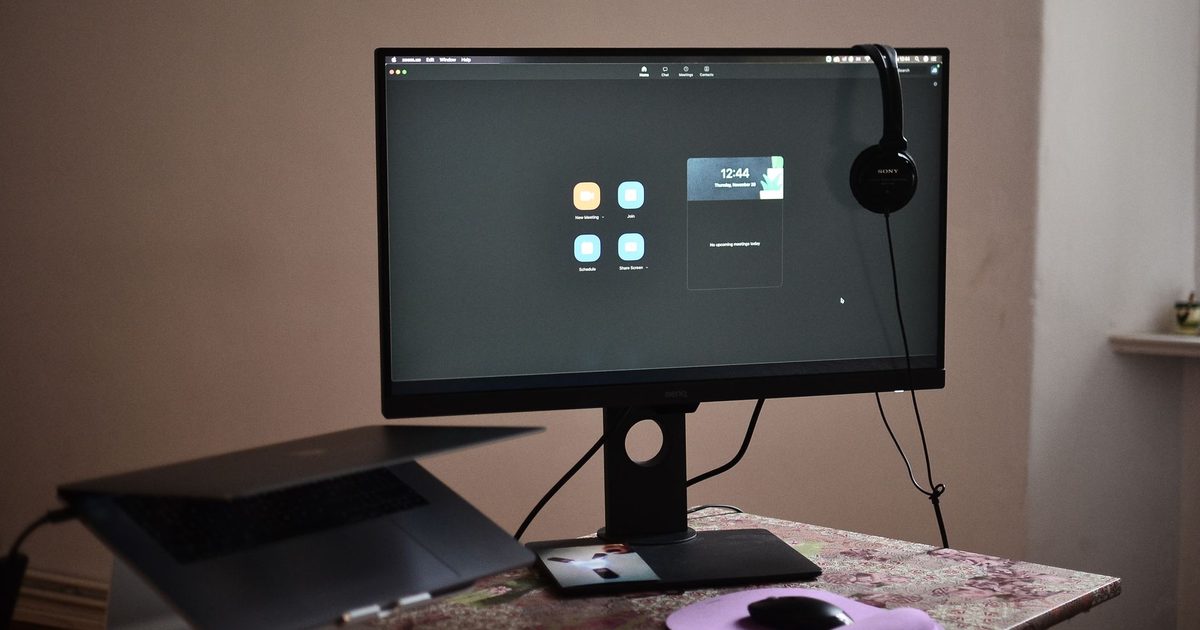
The Health and Safety Executive sets the guidance UK employers work to for people at screens. On monitor height its rule is a single line: "Top of screen level with eyes, about an arm's length away", and it wants the "Computer and screen directly in front of you on desk or other surface".
So the target is not the middle of the screen, and not the top of the plastic bezel. It is the top of the picture, brought level with your eyes when you sit up and look ahead. Do that and your gaze falls naturally onto the upper part of the screen and drops a little further for everything below. The screen sits an arm's length back, roughly where your fingertips reach when you stretch a hand towards it, and square in front of you rather than off to one side.
"Eye level" is your eye line, not a number in centimetres
The reason the HSE gives no measurement is that there is no single right height. Eye level is wherever your own eyes end up once the chair is set to a comfortable typing height, with your forearms level with the desk. A taller person sitting properly has their eyes higher off the desk than a shorter person does, so the same monitor needs raising by different amounts for each of them. Set the chair first, sit the way you actually sit, then measure the gap between the top of the screen and your eye line. That gap is what you have to close.
Many setups start with the screen below eye level. A laptop is the worst offender: its screen and keyboard are joined, so a comfortable typing height leaves the display down near the desk. A desktop monitor on its own foot is usually closer, but often still short for a taller person, because built-in stands tend to sit low.
Three ways to close the gap, cheapest first
Once you know how far the screen has to come up, the fix is whatever raises it by that much and holds it there.
The cheapest fix costs nothing: a couple of sturdy books or a ream of paper under a desktop monitor's foot. It looks makeshift, but for a screen that only needs an inch or two it is perfectly sound, and it costs you an evening of trial and error rather than any money.
For a laptop, the HSE spells out the next step: use a "Keyboard and mouse separate from the laptop so screen can be elevated on a laptop riser". A laptop stand does exactly that, lifting the screen towards eye level while you type on a separate keyboard at the right height. A fixed aluminium riser, like the ones in our best laptop stand guide, raises the screen by a set amount. The Rain Design mStand there lifts it a stated 150mm, which is enough to bring a laptop screen up near where an external monitor would sit.
The most flexible fix, and the dearest, is a monitor arm. It clamps to the desk and holds a desktop screen off it entirely, so you set the height by hand and change it whenever your chair does. That freedom is the whole point of an arm, and it is why our best monitor arm guide leans so hard on smooth, tool-free height movement: an arm that fights you every time you adjust it has thrown away its main reason to exist. Reach for an arm when the screen has to move often, or when you want the desk clear underneath it. For a screen that lives at one height, a riser does the same job for less.
Two screens follow the same rule
A second monitor does not change the target; it just doubles it. Put the screen you look at most directly in front of you at eye level, exactly as above, and set the second one to the same height beside it, angled in slightly so you turn your head rather than your eyes to reach it. If you use both equally, centre yourself on the gap between them instead and match their heights. The one thing to avoid is leaving a laptop flat on the desk as a second screen next to a raised monitor, since that puts you back in the low, head-down position the whole exercise is meant to undo.
Once the height is right, look at the light
Height decides where you look. What that spot feels like to look at also depends on how it is lit. A bright window behind the monitor, or a ceiling light bouncing off the glass, makes the screen harder to read whatever the height. That is the job a monitor light bar is built for: it lights the desk in front of the screen without bouncing its own light back at the panel. Sort the height first, then the lighting, and most desks become a good deal easier to work at.
FAQ
Q: Should the top of the screen or the middle be at eye level? A: The top. The HSE's line is "Top of screen level with eyes", so you bring the top edge of the picture up to your eye line and let your gaze fall onto the middle from there. Setting the middle at eye level pushes the whole screen higher than it needs to be and tips your head back.
Q: How far away should the monitor be? A: About an arm's length, in the HSE's words, which for most people is roughly the distance your fingertips reach when you stretch towards the screen. If text is too small to read at that distance, increase the text size rather than pulling the screen closer.
Q: My monitor's own stand will not go high enough. What now? A: That is common, because built-in stands often sit low. Raise the screen the rest of the way with something under the foot, or swap to a monitor arm that sets any height you like. For a laptop, a stand with a separate keyboard does the same job.
Q: Does the same rule apply on a standing desk? A: Yes. Raising a sit-stand desk lifts the monitor with it, but the eye-level target does not move, so you check the screen height again once you are standing. Our standing desk height guide covers setting the desk itself to elbow height in both positions.